01 ~ The point
What you get
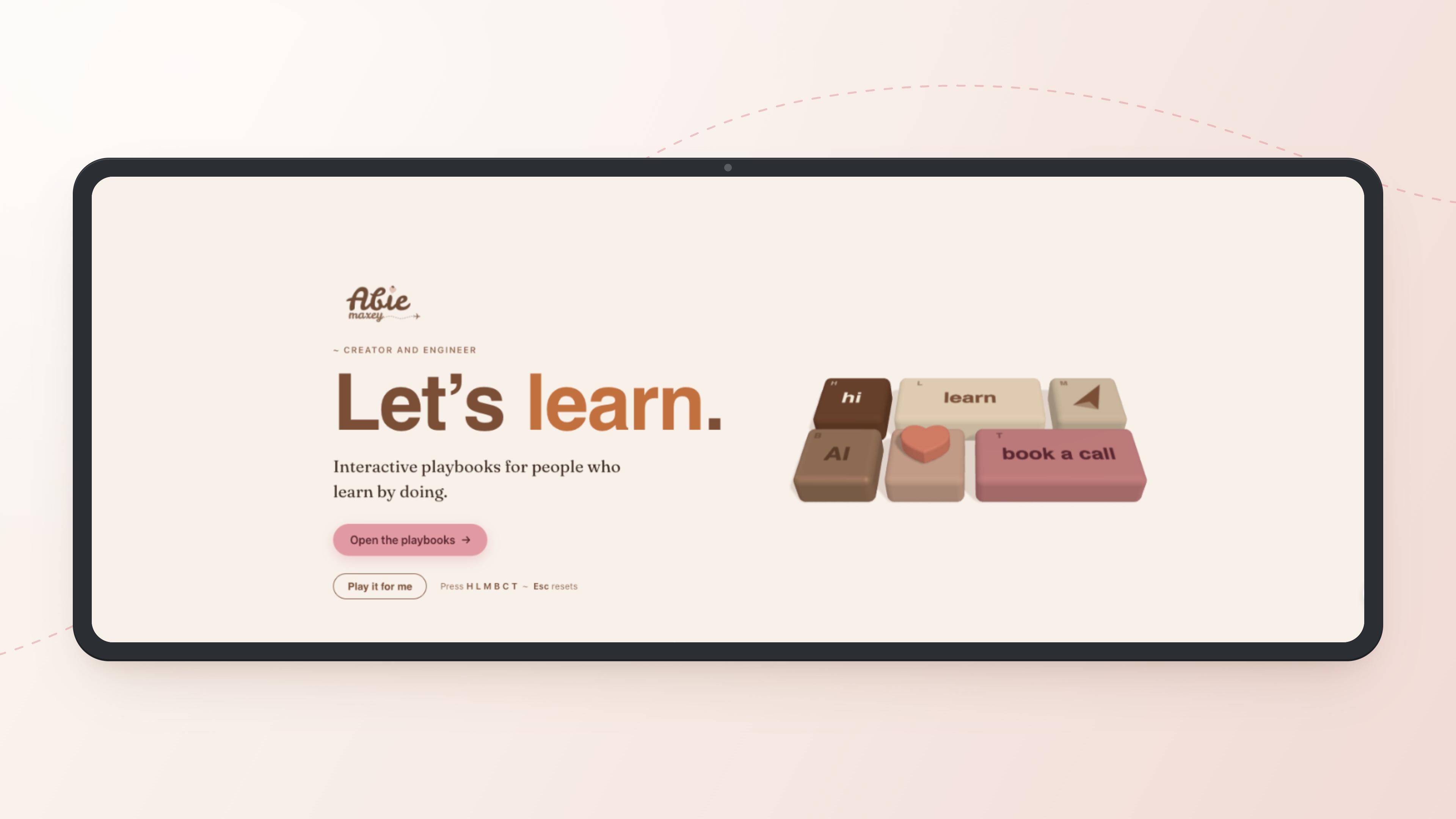
A small 3D keypad next to a giant headline. Each key swaps one word: Let's learn, Let's move, Let's talk. The line under it changes too, and so does where the button goes, so every key is a door to something you offer. Your real keyboard works as well. Press L and it says learn.
The idea comes from sickmolly.space/play, a tiny keyboard that changes the headline on @sickmolly's portfolio. I loved the mechanic, so I kept it and made the object my own. If you build one, do the same: borrow the idea, not the design.
02 ~ Before you start
What you need
KooKo
A free account is enough to start. My whole test run, the brand skill and the keypad, used about 150 credits.
Your brand
3 to 5 screenshots of your own website: the homepage, a page you love, your about page. No website yet? Screenshot a Pinterest board of the look you want instead.
Your rules
The few things you never do. Mine: no em dashes, no emojis, nothing glossy.
Your six keys
For each key: a word, one line, a button and a link. Write them down before you start.
Time
About half an hour, most of it waiting. The build ran for 27 minutes while I did other things.
I used KooKo for every step below. Start free with my link.
03 ~ Create your own skill
Your brand as a skill
A skill in KooKo is a set of instructions it saves and applies to every new task, so you explain your brand once instead of every time. You can pick a built-in one under Skills, or create your own just by asking in the chat. That is what I did.
I attached screenshots of my website. Pull out my brand into rules you can reuse every time I build something: colors as hex codes, fonts, shapes and shadows, the overall style, how I write, and the things I never do. Save it as a skill called "my-brand" so I never have to explain my brand again. Keep these exact: [your never-do rules].
No website yet? Use a mood instead of a brand:
I attached screenshots of a Pinterest board with the look I want for my website. Describe that look as rules you can reuse: colors as hex codes, the kind of fonts, shapes and shadows, textures, and the overall mood. Save it as a skill called "my-look" so every page I build matches it.
Mine took 6 minutes and about 43 credits. KooKo made a plan in its Task Monitor, read every image, and saved separate notes for colors, fonts, visual style, voice and rules, plus a checklist it runs before it hands anything back.
Read what it saved before you build anything. Mine was close, but one brown came back a shade off my real one. One line in the same chat fixes it, and the fix carries into every build after.
Working with AI is compound interest. The slow part is the foundation: your brand, your rules, the way you like things done. Then every build gets a little easier than the last. Mine took ages to write down. Now one prompt builds something like this.
04 ~ One prompt
Describe the keypad
Start a new project. Tell KooKo to use your skill by name, describe the keypad, then list your six keys. Fill in the brackets with yours.
Use my my-brand skill. Build the hero section for my website as one HTML file. The idea: a small 3D keypad (Three.js) next to a giant headline that reads "Let's ___." Pressing a key swaps the word, the line under it, and where the main button links. It's inspired by sickmolly.space/play. Use the mechanic, not the design. The keypad: 6 keys on a 4 x 2 grid, two of them double-wide. Each key has a small letter in the corner. The 6 keys (key, letter, word, line under it, button text, link): KEY 1: [key], [letter], [word], "[line]", "[button]", [link]. KEY 2: ... KEY 6: ... Before any key is pressed the headline is "Let's [word]." with "[your one-liner]". Also: my real keyboard works too (the six letters) and Esc goes back to the start. Keys press down and come back up with a soft, weighty feel. A "Play it for me" button presses every key in turn. It works on a phone (375px wide) with no sideways scroll.
These were my six:
hi · H
Let's meet. Hi, I'm Abie. Engineer and creator, a Filipina building online from Spain. Read my story.
learn · L
Let's learn. Interactive playbooks for people who learn by doing. Open the playbooks.
plane · M
Let's move. Spain's digital nomad visa, step by step. Check your visa options.
AI · B
Let's build. AI automations and the small tools I run three businesses on. See the AI playbooks.
heart · C
Let's connect. One warm email a week. No noise. Join the list.
book a call · T
Let's talk. Pick a time that works for you and tell me what you are building. Book a call.
My first attempt went wrong before KooKo even started. I typed the prompt with Shift+Enter between the keys, the line breaks didn't stick, and my list ran together:
... "Check your visa options" / https://happyvoyager.comAI / B / build / ...One of my links had turned into happyvoyager.comAI. Paste your prompt in, or write it as one paragraph with KEY 1:, KEY 2: like the one above.
Then I left it alone. KooKo planned the build as four tasks, wrote the page, and tested it in a real browser at desktop and phone width before handing it back. It took 27 minutes and about 108 credits. What came back is the screenshot at the top of this post.
When it finished, KooKo asked if I wanted to save the keypad itself as a skill, so the next one for a new page is a single message with different keys. Say yes. That's the compound interest again.
05 ~ Follow-ups
Make it yours
The first version is never the best. This is where you come in: add your taste, and correct what's off. Mine had two things I wanted different: the line under the headline was in a serif, and the keys sat in a different order than I asked. Yours will have its own list. Send follow-ups one at a time and look at the result between each.
And talk to it like your bestie. You don't need a perfect prompt here. “That font feels off, use the same one as the rest” works. So does “make it matte, it looks too shiny.” Say what you would say to a friend looking at your screen. A little bit of this, a little bit of that, until it feels like you.
Set the line under the headline in the same sans serif as the rest of the page.

Make the keypad look more premium and matte, less shiny: matte keycaps, a satin metal case. Remove any logo from the keypad.

Add a real mechanical keyboard click: the attached press sound when a key goes down, and the release sound when it comes back up.

Make it feel more like me: set the keypad on torn grid paper with washi tape, my sticker peeking in at the corner, and a handwritten note that says pick a key, any key.

The intro animation when the page loads feels off. Make it subtle: the keypad fades up and levels out, then the keys settle in a soft wave. No bouncing.
For the click, use a sound you made or have the rights to. A free sound pack is fine for a personal site, but read the licence if the page will run in ads.
06 ~ Remote Control
Finish it from your phone
You don't have to sit and watch a 27 minute build. KooKo's Remote Control picks up the same project on another device. Send the build from your desk, then open the project on your phone to check the Task Monitor and send the next follow-up from wherever you are.
The follow-ups in step 3 are short on purpose. They are easy to type on a phone, and each one is a small change you can judge on a small screen.
07 ~ Copy this
Every prompt, and the checklist
Brand skill
Screenshots of your site attached. Pull out your brand into reusable rules and save it as a skill called my-brand.
Pinterest skill
Screenshots of a Pinterest board attached. Describe the look as rules and save it as a skill called my-look.
The keypad
Use the skill by name, describe the keypad, list your six keys as KEY 1: to KEY 6:.
Follow-ups
Sans serif under the headline, matte instead of shiny, a real click, a scrapbook touch, a quieter intro. One at a time.
Everything above ran in KooKo. My link gets you started.
- Screenshots of your own site, or a Pinterest board of the look you want
- Your never-do rules written into the skill, word for word
- Read what the skill saved and fix anything off before you build
- Tell it to use your skill by name in the build prompt
- Paste prompts in, or keep them to one paragraph with KEY 1:, KEY 2:
- A click sound you have the rights to use
- Credit the idea you borrowed
- Building your skill from someone else's brand ~ start from your own, or from a mood you are after
The skill is the part that pays off. The keypad took one prompt because the skill had already done the explaining, and the next thing I build starts there too.
Love,
Abie