

01 ~ The point
What it is
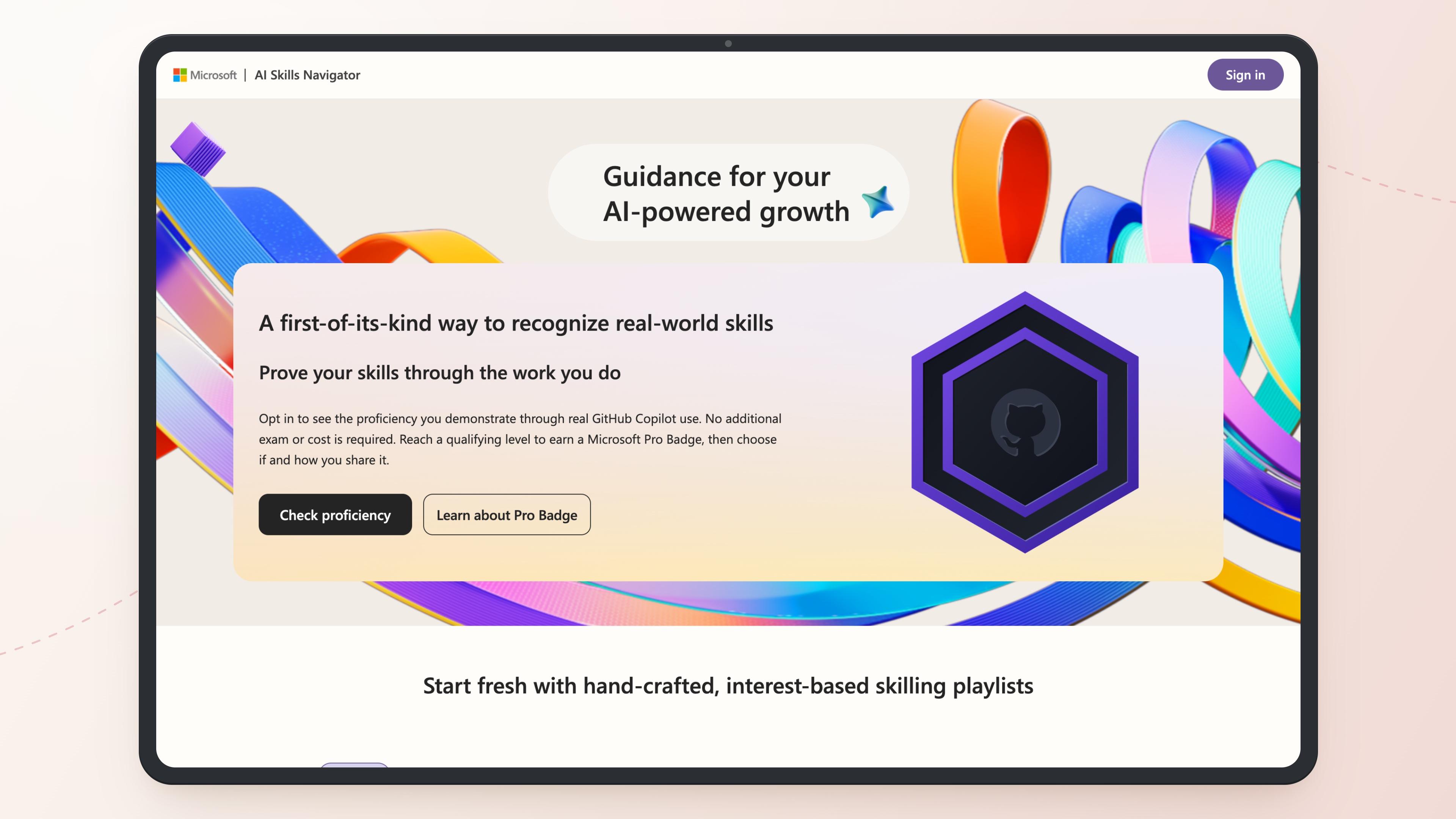
If you have been piling up credentials to prove you know AI, this one works the other way round. Microsoft Pro Badge for GitHub Copilot recognizes your Copilot skills from how you already use Copilot in your real work. You opt in, keep coding, and your level is worked out for you.
Quick note before we start: this guide is part of a paid partnership with Microsoft. Everything below is what I saw going through it myself, on my own GitHub account. Microsoft's own announcement has the official details.
GitHub Learn
Where you opt in, and where you see your level. Private to you unless you share it.
Your Copilot use
GitHub.com, your editor, the CLI and mobile. This is the evidence. Nothing to study, nothing to sit.
AI Skills Navigator
Microsoft's site. Your Pro Badge shows up on your profile here once you reach Proficient.
Credly
Where you claim the verified digital badge, so you can share it wherever you want.
02 ~ The idea
How your level is worked out
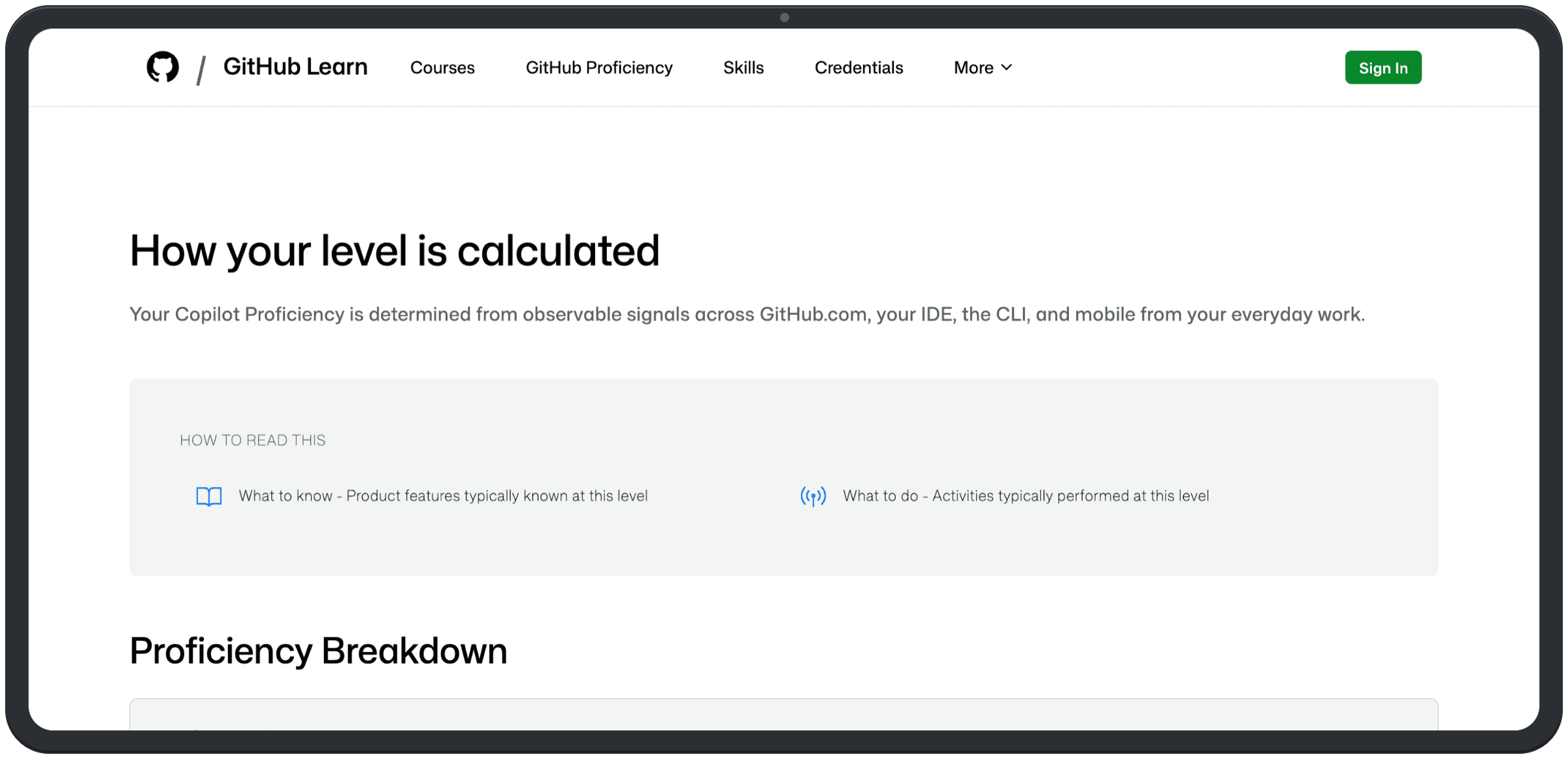
There is no test to book. GitHub Learn looks at observable signals from your everyday work across GitHub.com, your IDE, the CLI and mobile. An objective rubric estimates your proficiency from your Copilot use over time, and it looks at how broadly and deeply you use it, not just how much. GitHub's page on how your level is calculated breaks down what each level knows and does.
So the code you already shipped is the proof.
One honest thing: results may not appear right away. Mine didn't. The rubric reads your use over time, so give it a little while after you opt in before you go looking for your level.
Prefer to watch? GitHub's own walkthrough covers it in a few minutes.
03 ~ Step 1
Opt in on GitHub Learn
Go to the Copilot proficiency page on GitHub Learn and sign in with your personal GitHub account. Enterprise Managed accounts aren't supported at launch, so use the account you actually code with.
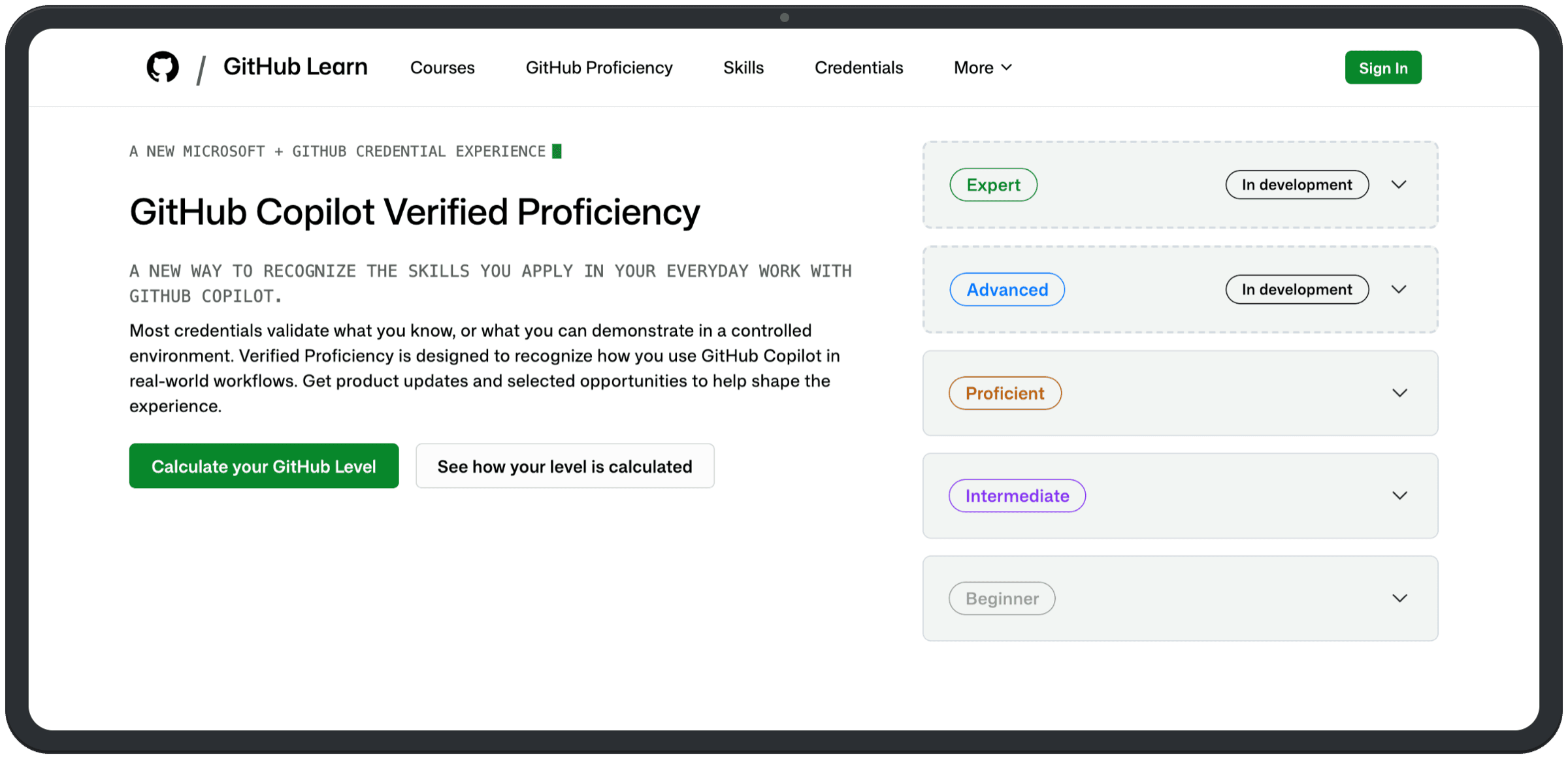
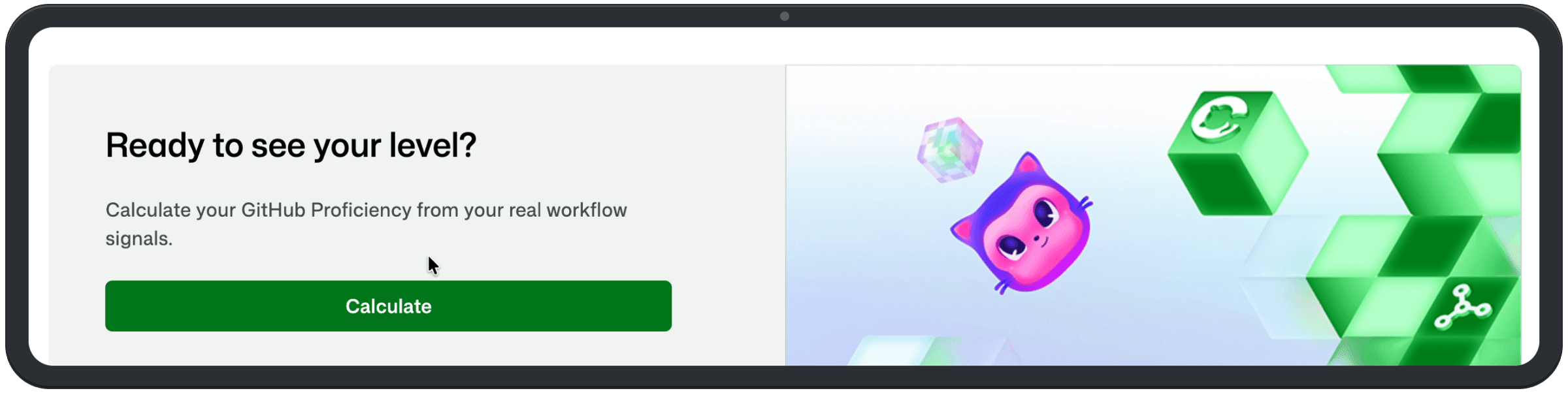
Nothing is calculated until you choose to take part. Once you are signed in, the same page has a Ready to see your level? panel with one green button. That is the one I pressed.
After that you land on your GitHub Learn dashboard. Your proficiency level is private and only visible to you unless you choose to share it, and the opt-out sits right next to it if you change your mind.
04 ~ Step 2
The three levels
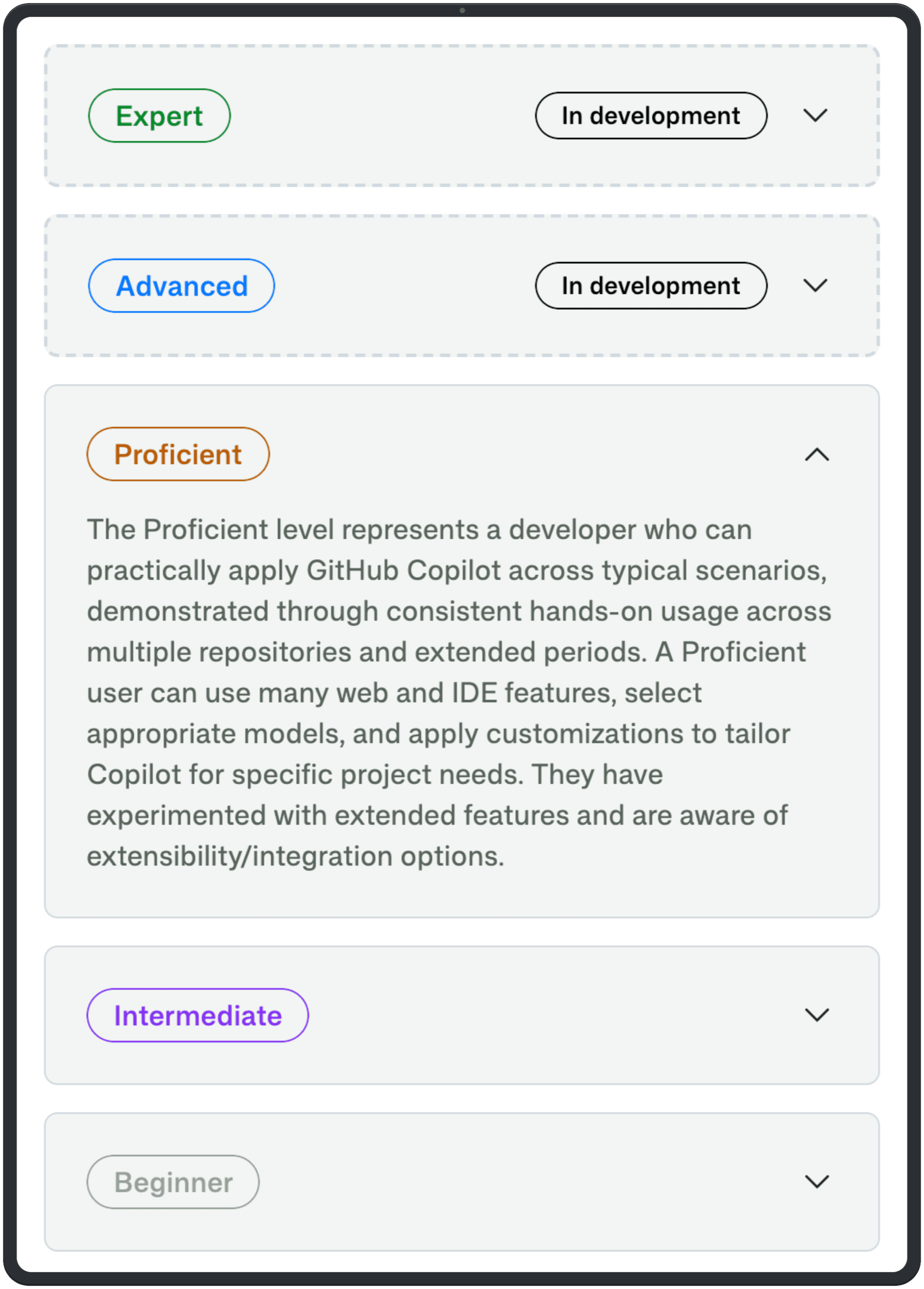
There are three levels today: Beginner, Intermediate and Proficient. Advanced and Expert are on the page too, marked in development. Reach Proficient and you earn the Pro Badge. GitHub describes it as being able to apply Copilot across typical scenarios, with consistent hands-on use across several repositories over a longer stretch of time.
Beginner
Early engagement and awareness.
Intermediate
Broad understanding, some applied use, and awareness of the extended features.
Proficient
Practical ability to work on projects. This is the level that earns the Pro Badge.
Beginner and Intermediate show you where you are. They don't come with a badge. Your level keeps updating as your work, your skills and the product change, so it is a moving picture, not a one-off result.
05 ~ Step 3
Where your badge shows up
When you reach Proficient you get a notification, and your Microsoft Pro Badge appears on your AI Skills Navigator profile. It is private by default.
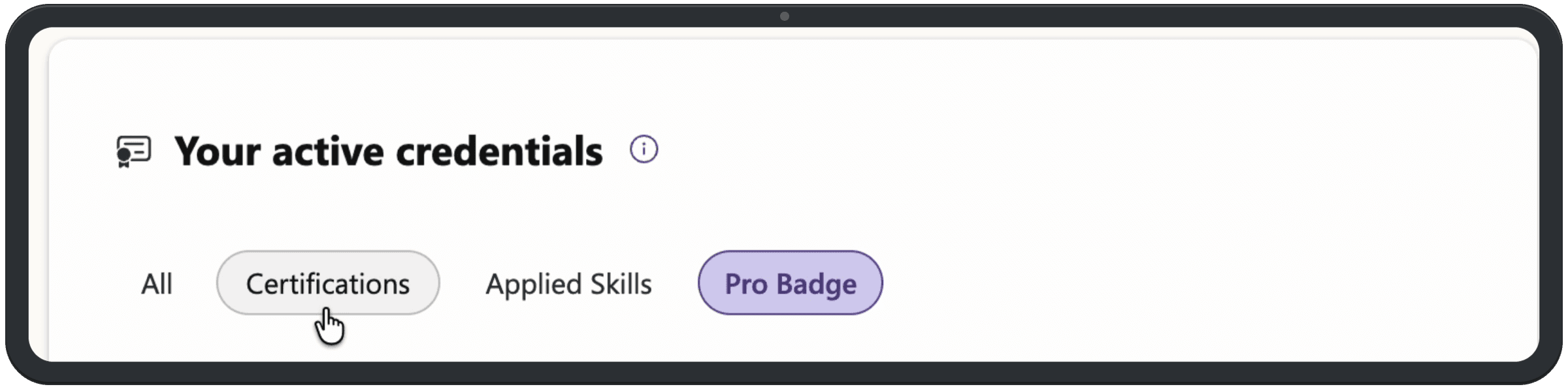
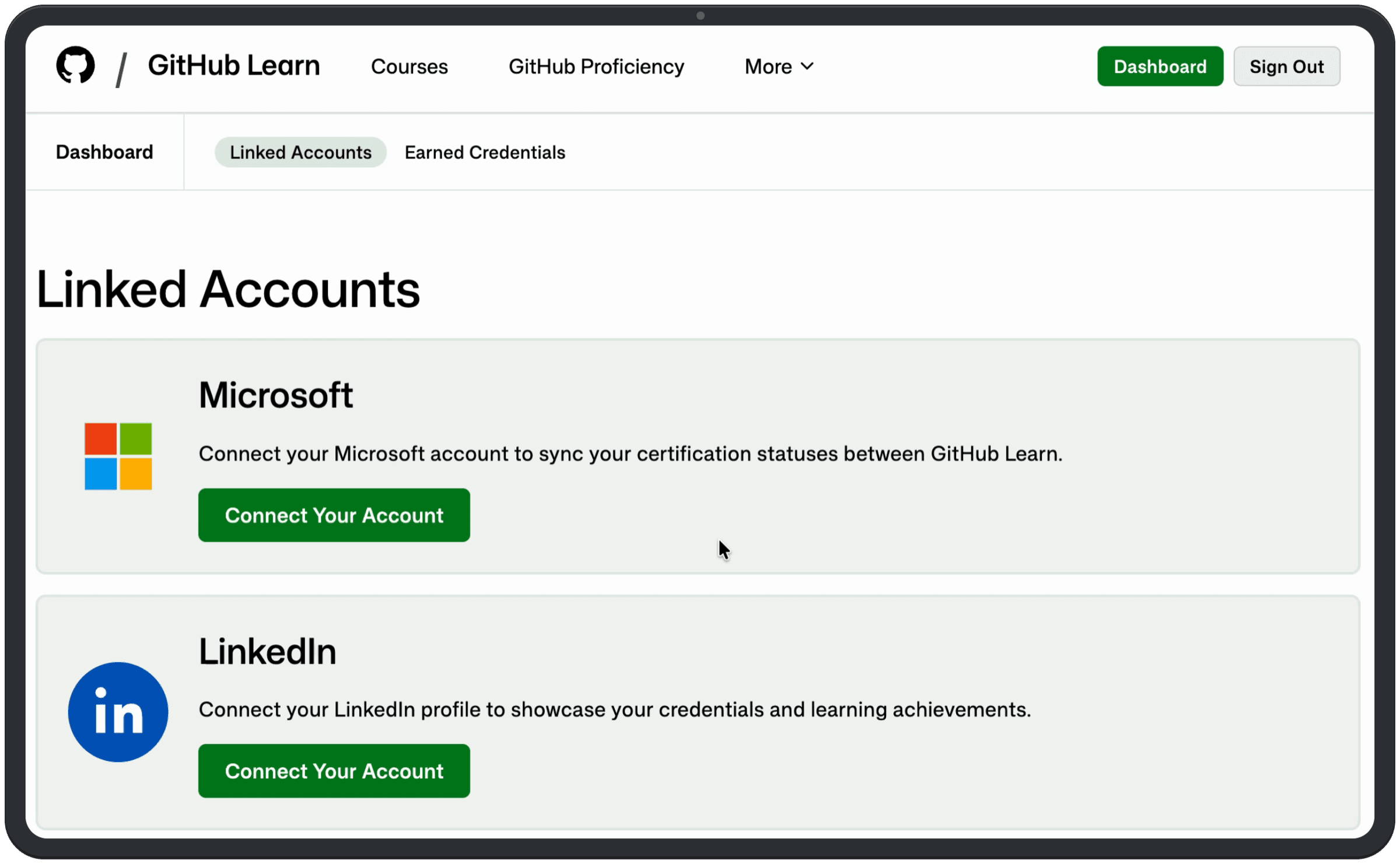
To get it there, connect your Microsoft account on GitHub Learn under Dashboard, then Linked Accounts. When I did, it asked me to create an AI Skills Navigator profile first, because my Microsoft account didn't have one yet.
06 ~ Step 4
Share it
Nothing is shared automatically. Your badge appears only where you choose. Claim your verified digital badge on Credly to show the achievement and the skills behind it, then decide whether and where it goes.
The same Linked Accounts page on GitHub Learn also lets you connect LinkedIn, to showcase your credentials and learning achievements on your profile.
07 ~ Copy this
The checklist
- Sign in to GitHub Learn with your personal GitHub account. Enterprise Managed accounts aren't supported yet.
- Opt in with Calculate your GitHub Level. Nothing is calculated before you do.
- Keep coding with Copilot on GitHub.com, in your editor, in the CLI and on mobile. That is the evidence.
- Give it time. Your level is estimated from your use over time, so it can take a while to show up.
- Link your Microsoft account under Linked Accounts, so your Pro Badge can land on your AI Skills Navigator profile.
- Claim it on Credly when you get there, and decide for yourself where it goes.
- Expecting a badge at Beginner or Intermediate. Only Proficient earns the Pro Badge.
Ready? Opt in on GitHub Learn and see where your Copilot skills land.
Opt in on GitHub LearnEvery link in this guide
- Opt inGitHub Learn · Copilot proficiency
- How it worksGitHub Learn · How your level is calculated
- Link accountsGitHub Learn · Linked Accounts (Microsoft and LinkedIn)
- Your profileAI Skills Navigator
- Share itCredly
- The announcementMicrosoft Skills Hub · A credential based on real work
- WatchGitHub · Get your skills recognized with GitHub Copilot verified proficiency
What I like most is that there is nothing to study for. The only way up is using Copilot on real projects, which is the part I was doing anyway.

Love,
Abie